
 Git / GitHub
Git is the engine under the hood, and GitHub is the shiny showroom where everyone sees your work. Mastering a handful of core commands will handle 90% of your daily workflow.
Think of Git as a three-stage process for saving your work. You move files from your folder to a "staging area" before finally sealing them into the permanent history (the repository).
In most cases, you would normally like to work on your, personal branch, unless stated otherwise. Branches allow you to work on new features without breaking the "main" (stable) version of the project. You should switch to your branch before committing any file.
git checkout -b <branch_name>: Create and switch to a new branch.git add <file>: Move changes to the Staging Area. Usegit add .to stage everything instead.git commit -m "Your message": Record the staged changes permanently. Remember, keep messages descriptive (e.g., "Fix login button styling").
 In VSCode, you can monitor the branch you're working in by looking at the bottom left of the screen or you can use
 git status, a very helpful command you can always run to additionally check local files status.
Setup
Installation
pacman -S gitSSH Key
You will need an SSH key so that your computer and GitHub will have a "secret handshake" that identifies you automatically, without needing any further authentication.
1. Generate the key
The following command will ask "Enter file in which to save the key." Just hit Enter to accept the default location.
ssh-keygen -t ed25519 -C "your_email@example.com"2. Copy the Public Key
cat ~/.ssh/id_ed25519.pub(then manually highlight and copy the text)
3. Add the Key to GitHub
Login to GitHub, and go to Settings. In the left sidebar, click SSH and GPG keys. Then, click the green New SSH key button. Give it a title, paste your key and click Add SSH key.
4. Test the Connection
ssh -T git@github.comIf you see "Hi [YourUsername]! You've successfully authenticated", everything is set and you are ready to go.
Working on a Project
Repository Initialization
If you need to work on an existing repository, just clone it locally:
git clone <URL>: Download an existing GitHub repository to your computer
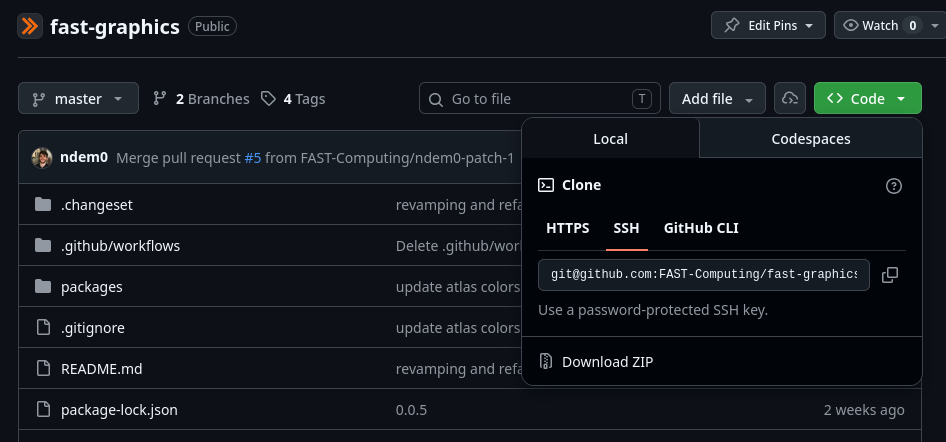 You can get the required URL pushing the green "Code" button and copying the SSH URL.
git init: Git initialization in current foldergit remote add origin <URL>: Connect the local repository to the GitHub one
Else, when setting up a new project, always start by creating a new GitHub repository named fast- followed by the name of your project.
Conventions
The current company workflow is structured in the following way:
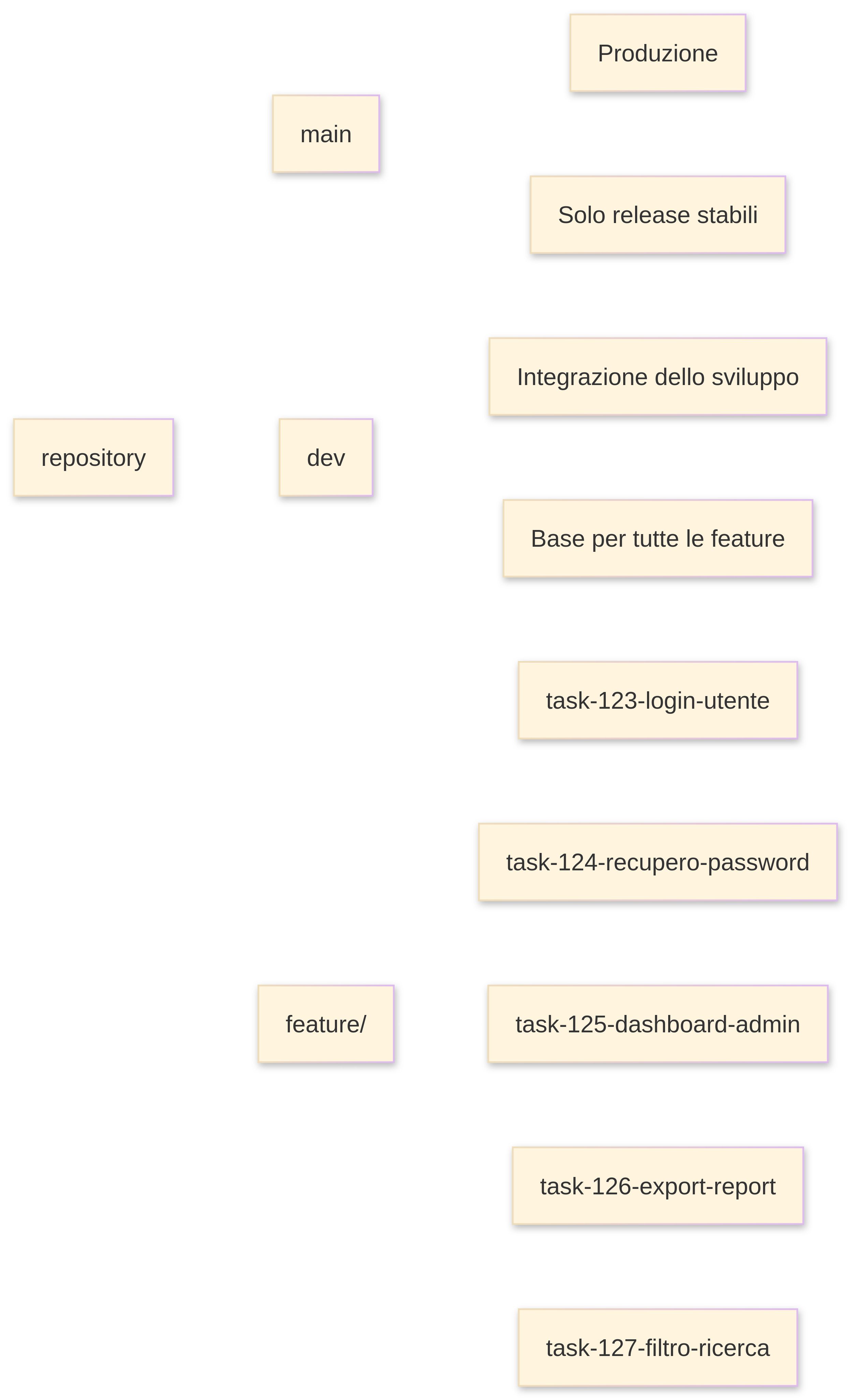
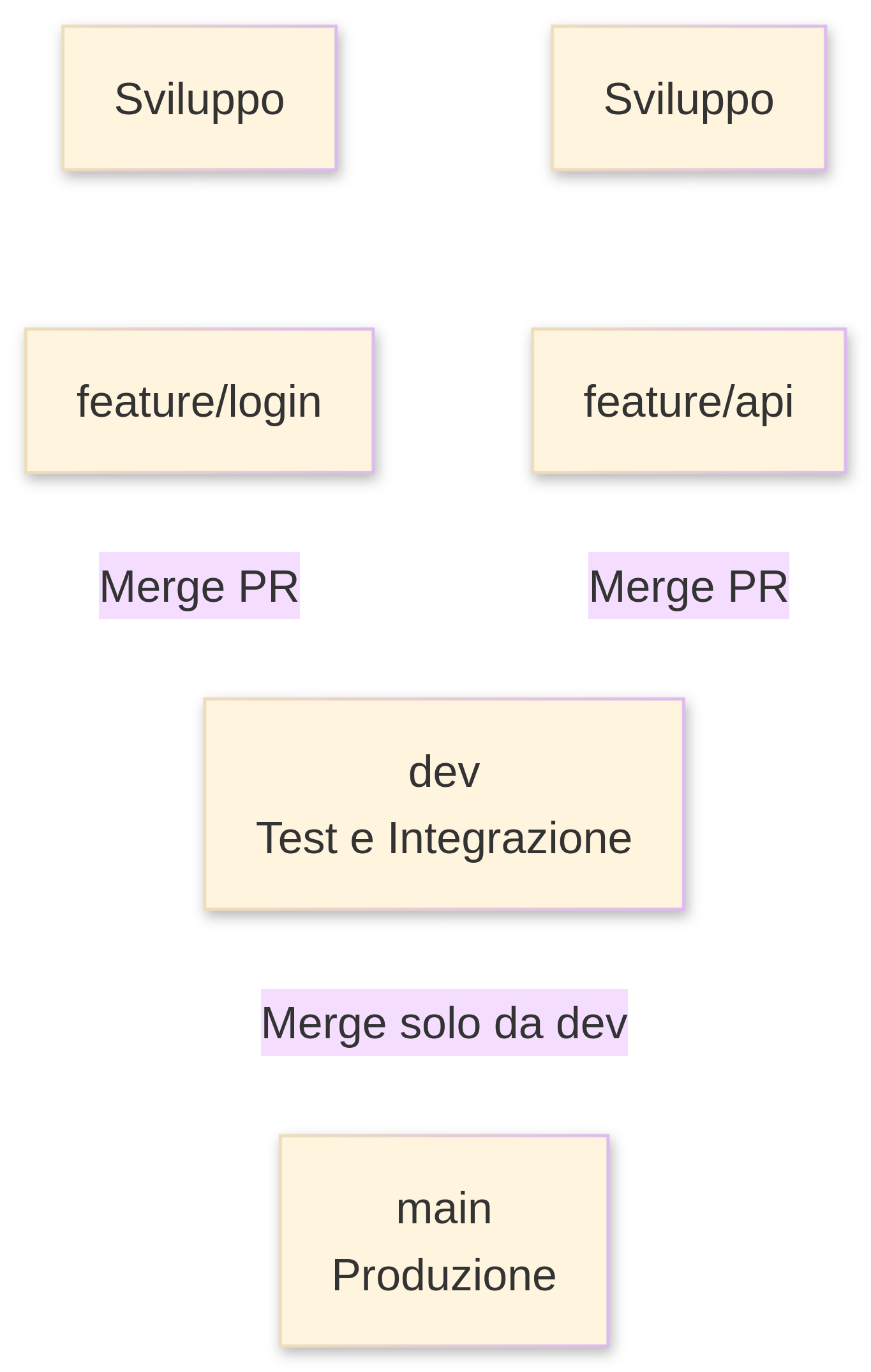
main(production): the root and stable branch containing the production, functional code for final users;dev(test/pre-production): the branch (or environment) into which the code is integrated to simulate the production environment and perform integration testing and QA.feature/(development): temporary branches created by each developer/contributor in order to implement new functionalities, resolve bugs and so on, without touching the main code.
Core Rules:
- Mandatory Task ID: Every single piece of development starts from a task (e.g.,
TASK-123). The ID must be taken from the respective GoodDay task and always be included in branches, commits, and PRs.
- No Direct Push to
mainordev: Updating the primary branches is done exclusively via Pull Requests. - Mandatory Rebase: Do not run
git merge maininside your feature branch. Always align your branch usingrebase.
Branch Naming Conventions:
- Feature:
feature/TASK-123-description - Bugfix:
bugfix/TASK-211-login-error - Hotfix:
hotfix/TASK-300-fix-payment - Refactoring:
refactor/TASK-500-clean-services - Spike/Test:
spike/TASK-700-oauth-test
Commit Naming Conventions:
- Format:
TASK-123 short description
Core Workflow
In FAST-Computing, we decided to take the following approach:
1. Creating the Development Branch
Before starting any task, switch to the dev branch and pull the latest changes from remote:
# Switch to dev and update it
git checkout dev
git pull origin dev

# Create your working branch from dev
git checkout -b feature/TASK-123-export-pdf
2. Frequent Development & Commits
Work on your code and commit frequently following the naming convention:
# Check modified files
git status

# Stage your changes
git add .

# Create the commit
git commit -m "TASK-123 add base layout for PDF export"

# Push your changes to the remote repository (first push)
git push -u origin feature/TASK-123-export-pdf
3. Rebase onto main before opening/merging the PR
Before opening (or merging) your Pull Request, align your branch with main to ensure a clean, linear history:
# Fetch latest data from origin without merging
git fetch origin

# Rebase your work onto origin/main
git rebase origin/main

# If there are conflicts: resolve them in your files, stage them, and continue:
# git add <resolved-files>
# git rebase --continue

# Force-push changes safely to the remote branch
git push --force-with-lease
4. Opening and Merging the PR into dev
- Open a Pull Request on GitHub setting base:
devand compare:feature/TASK-123-export-pdf(PR Title:TASK-123 - Export PDF). - Verify PR pre-merge requirements:
- Green CI (build, test, lint pass)
- No merge conflicts
- At least 1 team approval
- All conversations resolved
- No critical warnings
- Select
Squash and Merge(resulting commit:TASK-123 Export PDF). - Delete the remote branch (automated via GitHub or manually).
# Local cleanup after merging the PR
git checkout dev
git pull origin dev
git branch -d feature/TASK-123-export-pdf
git fetch --prune
Production Hotfix
If a critical bug occurs in production that requires an immediate patch:
Create the Hotfix Branch from main:
git checkout main
git pull origin main
git checkout -b hotfix/TASK-300-fix-payment
Quick Fix & Commit:
git add .
git commit -m "TASK-300 fix payment gateway timeout"
git push -u origin hotfix/TASK-300-fix-payment
PR & Immediate Merge into main:
- Open a PR with base:
main. - Request a quick review and wait for CI checks to pass.
- Perform a
Squash and Merge. - Deploy the fix to production immediately.
To prevent code drift, align dev with main right after merging the hotfix:
# Switch to dev and update it
git checkout dev
git pull origin dev

# Rebase dev onto origin/main
git fetch origin
git rebase origin/main

# Push updated dev branch safely
git push --force-with-lease
Extra Commands Cheat Sheet:
git status: Check the state of modified/staged files.git log --oneline --graph: View a concise, graphical representation of commit history.git fetch --prune: Remove stale local tracking branches that were deleted on remote.
Structures
Repository Branches
Development Flow
Versioning
The best and most standardized way to manage versioning is adopting semantic versioning combined with git tags.
The version number follows the vX.Y.Z structure:
MAJOR(X): Major changes or breaking changes (incompatibility with the previous version, e.g., API rewrites, non-backward-compatible database changes).MINOR(Y): New features released in a backward-compatible manner.PATCH(Z): Bug fixes (bugfix/hotfix) or small backward-compatible optimizations.
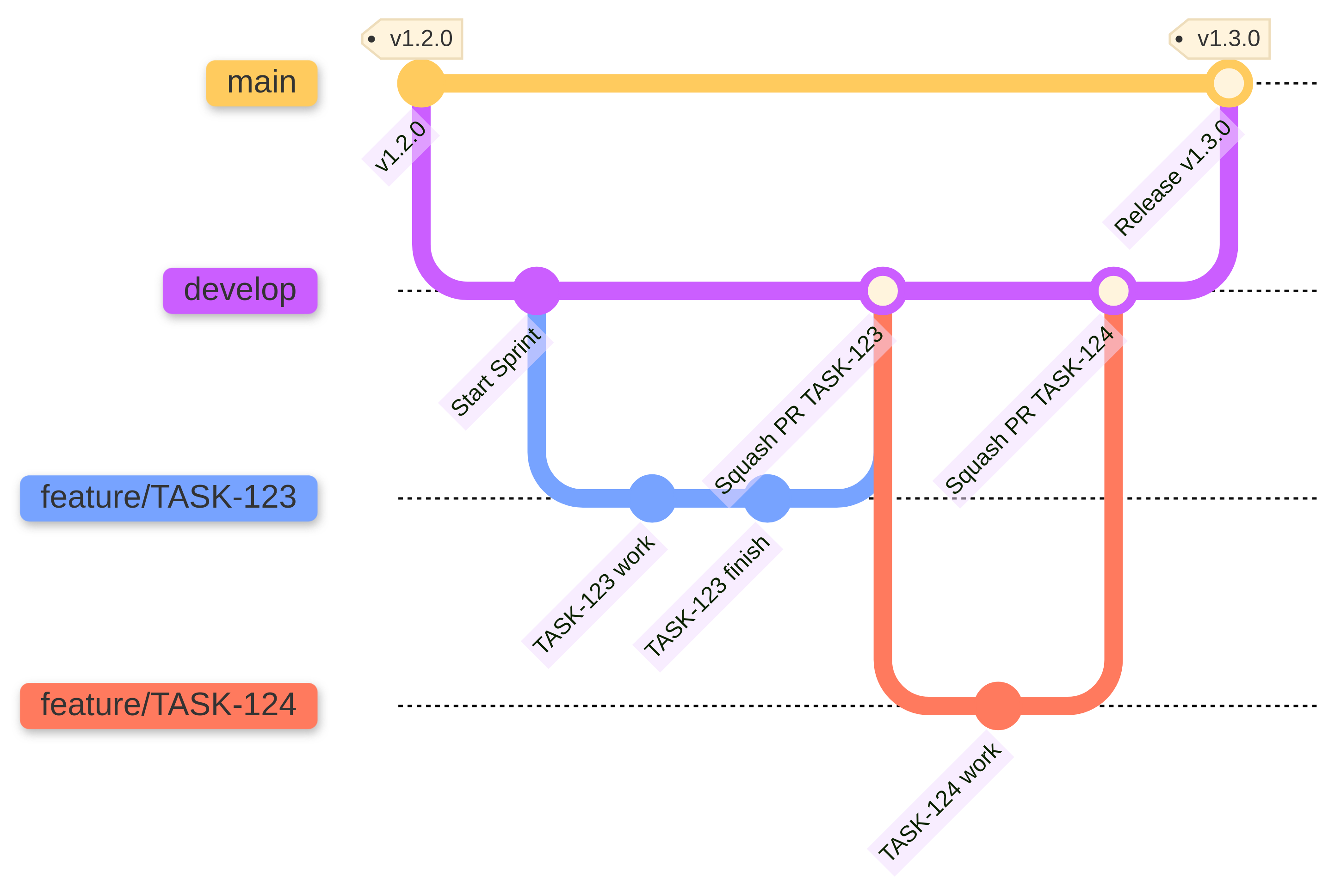
Ordinary Releases (dev ➔ main)
Every time you complete a set of tasks on dev and open a PR toward main:
- Version evaluation:
- If the release contains only new features/refactorings, increment
MINOR(e.g., v1.2.0 -> v1.3.0). - If it contains breaking changes, increment
MAJOR(e.g., v1.2.0 -> v2.0.0).
- If the release contains only new features/refactorings, increment
After merging the Release PR into main, an annotated tag is created directly on the release commit:
git checkout main
git pull origin main

# Create the annotated tag with a message
git tag -a v1.3.0 -m "Release v1.3.0: Include TASK-123, TASK-124, TASK-125"

# Push the tag on GitHub
git push origin v1.3.0
Emergency Hotfix (hotfix/* ➔ main)
When you apply a patch on main: always increase PATCH (es. v1.3.0 -> v1.3.1).
git checkout main
git pull origin main

git tag -a v1.3.1 -m "Hotfix v1.3.1: critical fix payment TASK-300"
git push origin v1.3.1
Actions
GitHub Actions are very useful workflows to be included or recalled from your repositories, with the purpose of automating checks, deployments, guardrails, tests.
FAST-Computing's workflows are currently stored in https://github.com/FAST-Computing/.github, from which they can be directly recalled in your applications:
- Create your own
.github/workflowsdirectory in the root folder of your project. - Inside, create a
.ymlfile referencing to the original template.
Example:
name: PR Code Guardrail Check

on:
  pull_request:
    types: [opened, synchronize, reopened]

jobs:
  # Note: this can have any name that you prefer
  call-code-guardrail:
    # Original template
    uses: FAST-Computing/.github/.github/workflows/pr_code-guardrail-template.yml@main
    with:
      # Args
      max-lines: 6000